



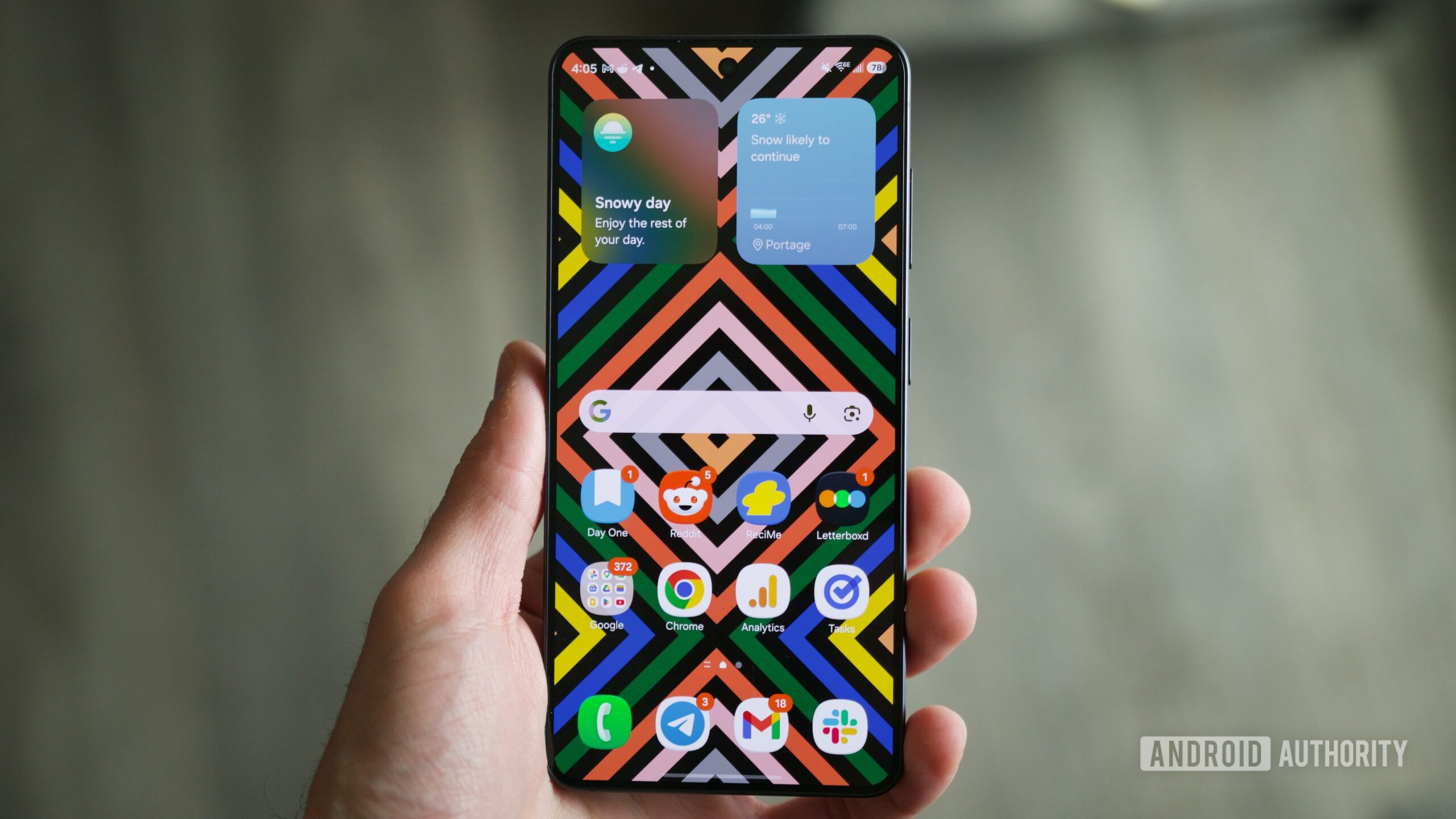
Optimize Your Samsung Experience: Disable These Features
Getting a new Samsung device, like the Galaxy S26, is exciting, but it often comes with a set of features you might not find useful. To improve your experience, consider disabling some default settings that can sometimes be more annoying than beneficial. Below is a guide on the top features to turn off.
1. Disable Samsung Keyboard
The Samsung Keyboard is the default typing interface and, frankly, it can be frustrating to use. With its poor auto-correct and voice typing features, many users prefer switching to alternatives like Gboard. To make this transition:
- Download Gboard from the Play Store.
- Open the app and navigate to settings.
- Enable Gboard and set it as the default keyboard.
This change can drastically improve your typing experience and reduce the number of embarrassing typos.
2. Turn Off Split Notifications and Quick Settings
Modern Samsung phones often split notifications and Quick Settings into two separate panels. This can be frustrating when trying to access both features quickly. Fortunately, you can merge them back into one panel:
- Swipe down from the upper-right corner for Quick Settings.
- Tap the pencil icon to enter edit mode.
- Select “Panel settings” and choose “Together.”
This allows you to view all notifications and settings in one easy swipe.
3. Deactivate Edge Panels
Edge Panels are a feature designed for quick access to apps, but many users find them more cumbersome than helpful. If you’re among those who accidentally activate them, here’s how to turn them off:
- Open the Settings app.
- Select “Display” and scroll down.
- Toggle off Edge Panels.
This will clear up space and prevent accidental screen activations.
4. Remove Samsung Wallet Shortcuts
If you do not use Samsung Wallet, seeing its shortcut on your home screen can be annoying. To disable it:
- Open the Samsung Wallet app and tap “Continue.”
- Adjust your settings by tapping the three dots in the upper-right corner.
- Select “Settings” and “Quick access” to toggle off the Home screen option.
This gives you a cleaner home screen without unwanted apps.
5. Fix Lock Screen Notifications
Another aspect that can be improved is how notifications appear on your lock screen. By default, you might only see icons rather than full notifications. To change this:
- Access the Settings app and go to “Notifications.”
- Select “Lock screen” and change “Cards” to display full notifications.
This minor adjustment can prevent you from missing important messages at a glance.
6. Turn Off Screenshot Swipe Gesture
The screenshot swipe gesture can be a double-edged sword. While convenient, it often leads to unnecessary screenshots when cleaning your screen. Here’s how to disable it:
- Go to “Settings” and find “Advanced features.”
- Select “Motions and gestures.”
- Toggle off “Palm swipe to capture.”
This way, you can take screenshots only when you intend to, leaving your screen clean and free from accidental captures.
Conclusion
Samsung devices come loaded with features that can enhance your user experience, but many of these settings can also be a nuisance. By disabling unwanted features such as Samsung Keyboard, split notifications, and edge panels, you can create a more streamlined and enjoyable experience. Explore these settings and personal preferences to truly make your Samsung phone your own.
